 ChatGPT Summary
AI tool
How to use ChatGPT summaries as context in Claude, Gemini and other chats
Summarize a page with ChatGPT, then use that summary as clean context in any other chat.
Home › Best AI tools › FullPage Capture
A screenshot of your screen shows an AI one slice of a page. Ask it about a pricing table, a long article or a landing page and it misses everything below the fold. FullPage Capture, a free full page screenshot extension, saves the entire page as one PNG, JPG or PDF. Upload that file to the chat and the AI sees the page from top to bottom, layout and all.
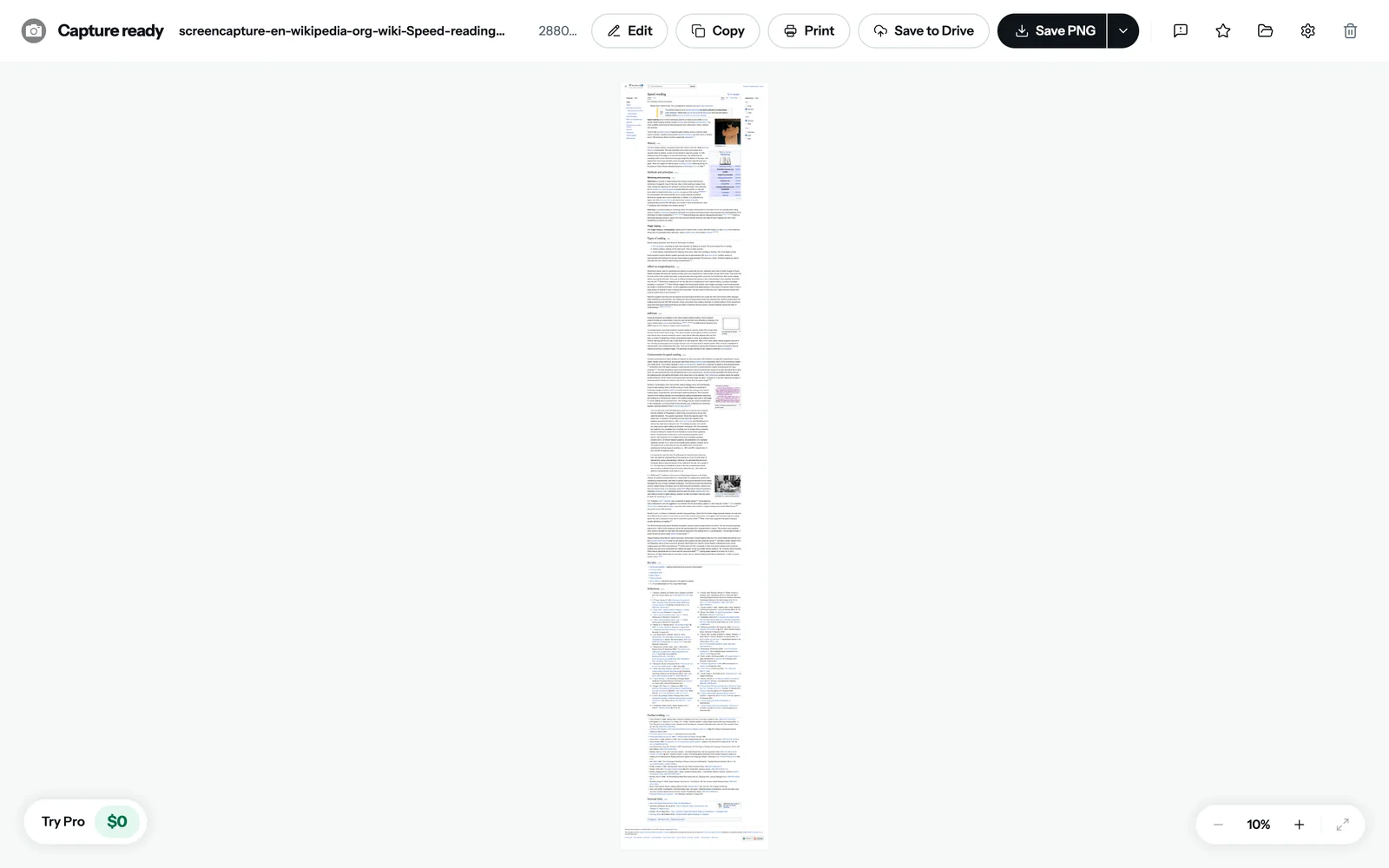
We ran it on the Wikipedia article "Speed reading". It took under half a minute and produced one image 7,455 pixels tall, from the title to the references.

| Upload | Best when |
|---|---|
| PNG image | You're asking about the design: layout, spacing, what stands out, what's broken |
| You're asking about the content of a long page, or want to keep a copy with clickable links | |
| Paged PDF (A4 or Letter) | The page is very long and you also want to print it |
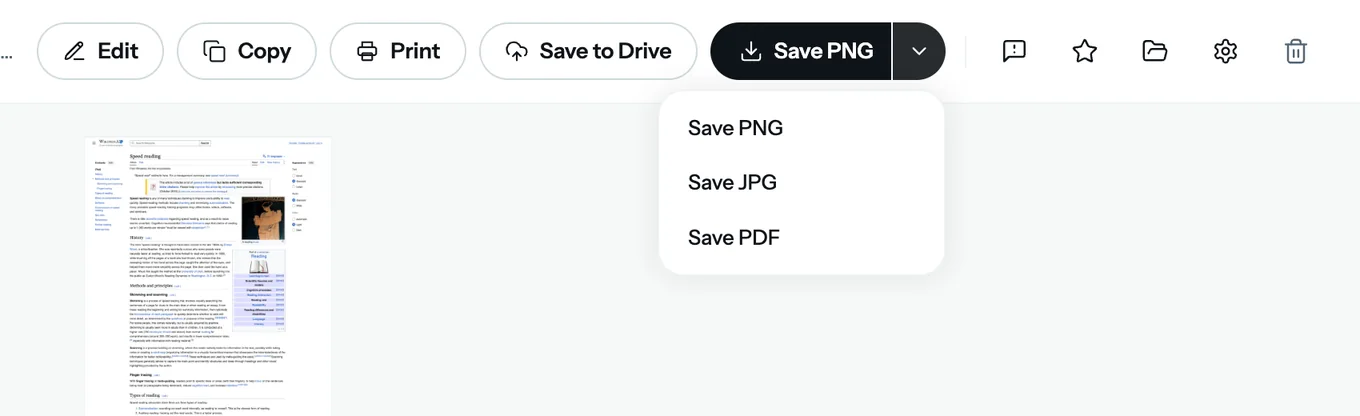
Most AI chats accept image and PDF uploads, though size and page limits depend on the service and your plan. If a very long capture gets rejected, save it as a paged PDF or crop it to the section you care about in the built-in editor.
The same capture works as an archive. Chrome's own print dialog can save a webpage as PDF too (Ctrl+P, then "Save as PDF"), but you get the print version of the page, where sidebars disappear and layouts change. A capture keeps the page as it looks on screen, and FullPage Capture's guide to turning a webpage to PDF covers the options. For pages that scroll inside a panel, like dashboards and web apps, a real scrolling screenshot scrolls that panel rather than the page.
Yes, you can upload a PDF to ChatGPT and ask about it. Limits on file size and length depend on your plan. The same goes for Claude and Gemini.
Take a full page screenshot with an extension like FullPage Capture, then attach the PNG or PDF in the chat, or use Copy in the result tab and paste it.
With an extension: click its icon and it scrolls and stitches the page. Without one: open developer tools, press Ctrl+Shift+P, type "screenshot" and choose Capture full size screenshot. The extension handles long and complex pages better.
Text is better for long reading, a screenshot for anything visual. If you only need the content, a ChatGPT summary of the page is shorter still.
Show the AI the whole page, not just one screen.