 ChatGPT Summary
Best AI tools
The best AI Chrome extensions for ChatGPT, Claude and Gemini
Seven tools that make any AI chat more useful, and what each one is best at.
ChatGPT Summary reads the article you're on and gives you the main points without leaving the page. It works on news, blogs, documentation and research pages, and on YouTube videos too.
Works in Chrome on desktop. On the Chrome Web Store it's listed as “Summary Webpage”.
Illustration of the summary panel. Your result depends on the page and your prompt.
Without an extension, you copy the text, open a chat, paste it and write a prompt. ChatGPT Summary does all of that from the page you're already reading.
A news story, a long blog post, a help page, a paper on arXiv. If the page has readable text, the extension can work with it.
Or press Ctrl+Shift+E (⌘+Shift+E on a Mac). The extension pulls the readable text from the page, leaving out menus, ads and footers.
A panel opens on the right with the summary. Copy it into your notes with one click, or close the panel and keep reading.
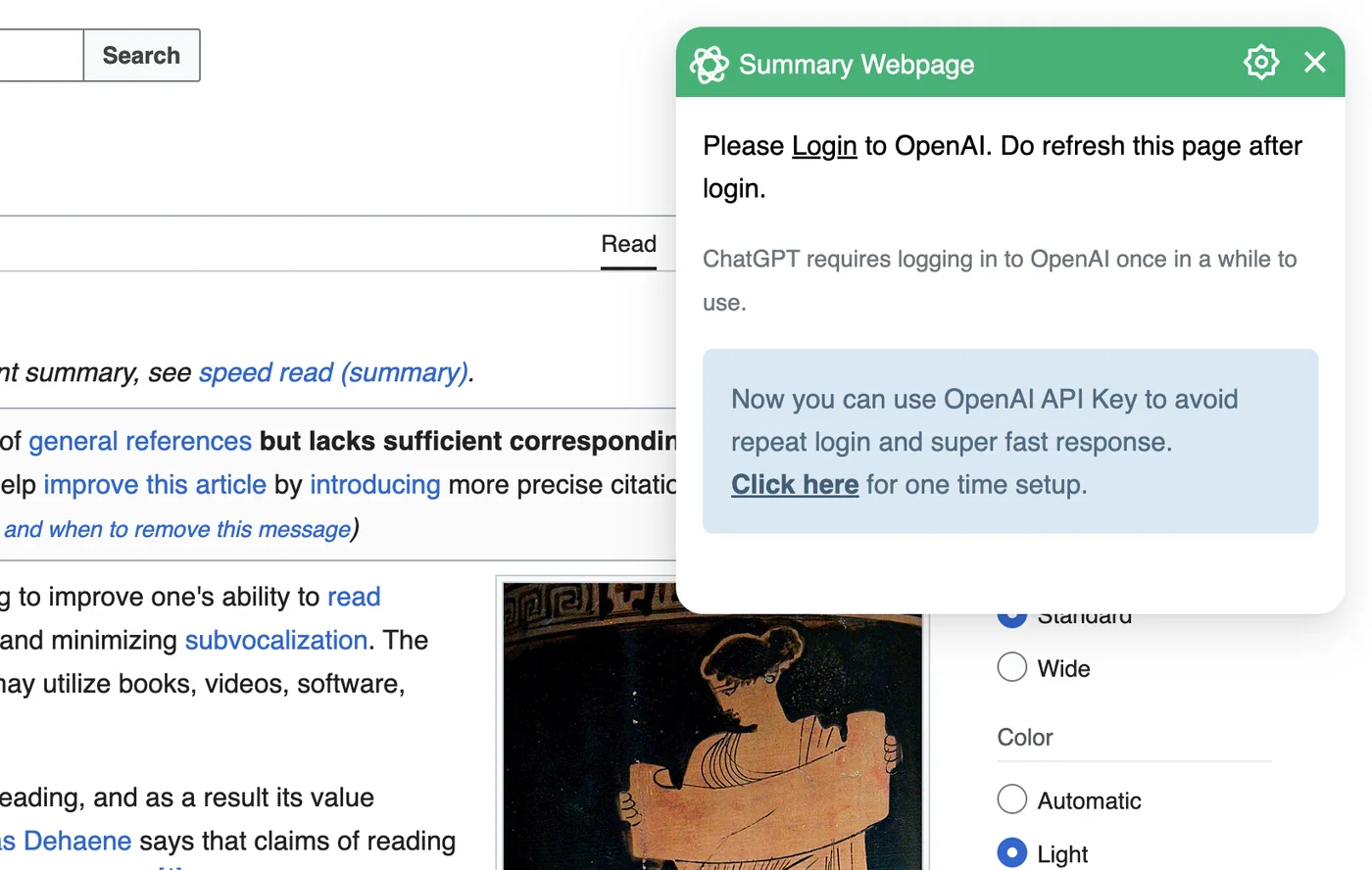
The summaries are written by ChatGPT. You choose how the extension talks to it.
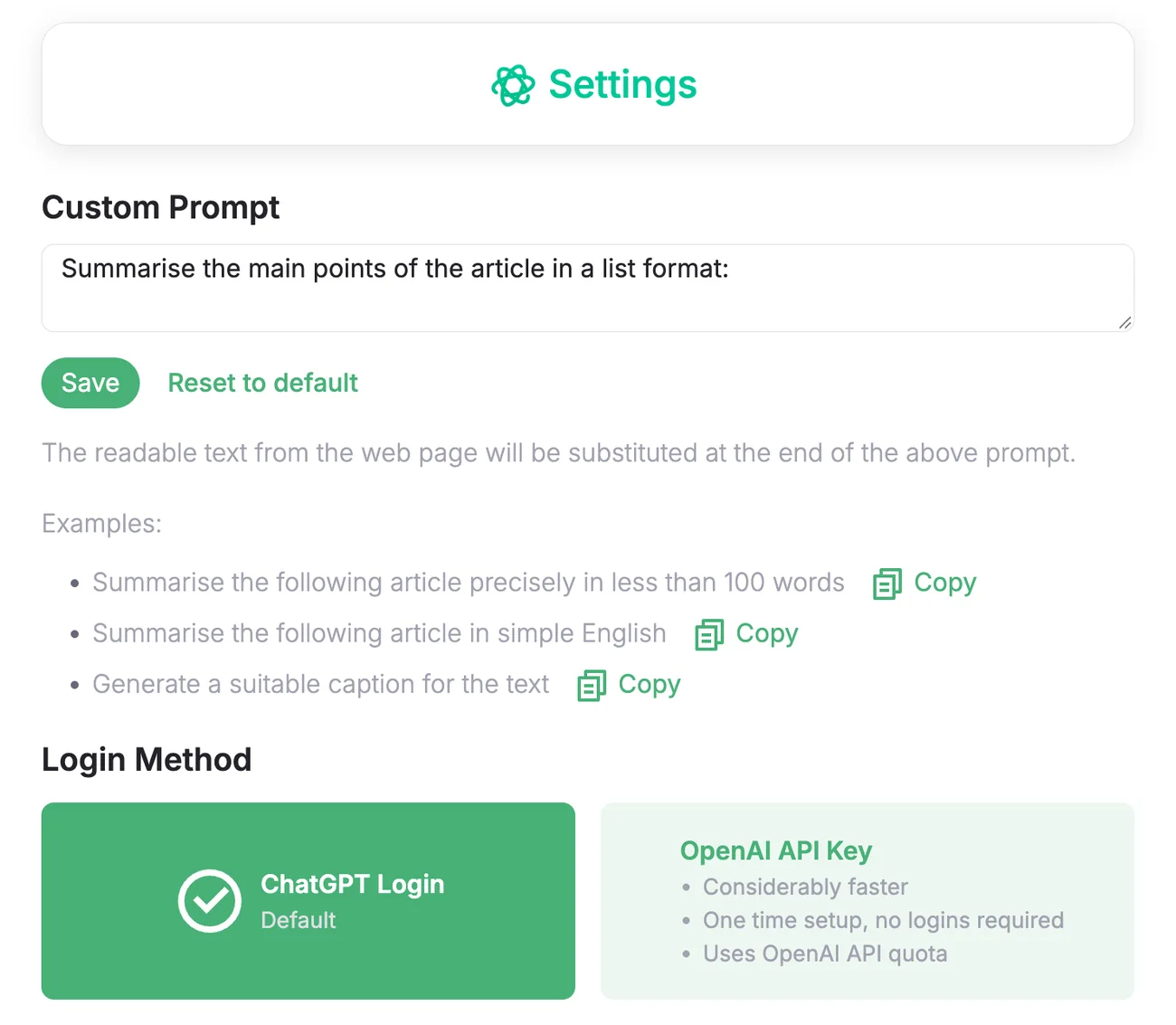
By default you get the main points of the article as a list. Change the prompt once and every summary follows it. The page text is added to the end of whatever you write. These are the extension's own built-in examples:
Lectures, podcasts and tutorials are often an hour long. ChatGPT Summary can summarize a video from its transcript, so you can decide whether it's worth watching.
The extension reads the text of the page only when you ask for a summary and sends it straight to ChatGPT or the OpenAI API, depending on your settings. It doesn't keep the text or send it to our servers. The details are in the privacy policy.
Seven tools that make any AI chat more useful, and what each one is best at.
What the official Claude Chrome extension does, who can use it and how to keep it under control.
A full page screenshot as one PNG or PDF, so the AI sees the whole page, not one screen.
Yes, the extension is free. If you connect it with an OpenAI API key, OpenAI bills that key for the summaries you generate, the same as any other API use.
You need one of two things: a ChatGPT account you're signed in to in Chrome, or an OpenAI API key saved in the extension's settings.
Install the extension, open the page, and click the extension icon or press Ctrl+Shift+E (Cmd+Shift+E on a Mac). The summary opens in a panel on the same page, so there's nothing to copy or paste.
Yes. It summarizes a video from its transcript. See the YouTube video summarizer page for how it works and what to expect.
Pages with a clear block of text: articles, blog posts, documentation, reports. Pages that are mostly images, video players or apps behind a login give it little to work with.
Yes. Write your own prompt in the settings, for example "summarize in under 100 words" or "list the key numbers". Every summary will follow it until you change it back.
Add the free AI summarizer to Chrome and try it on the next long article you open.